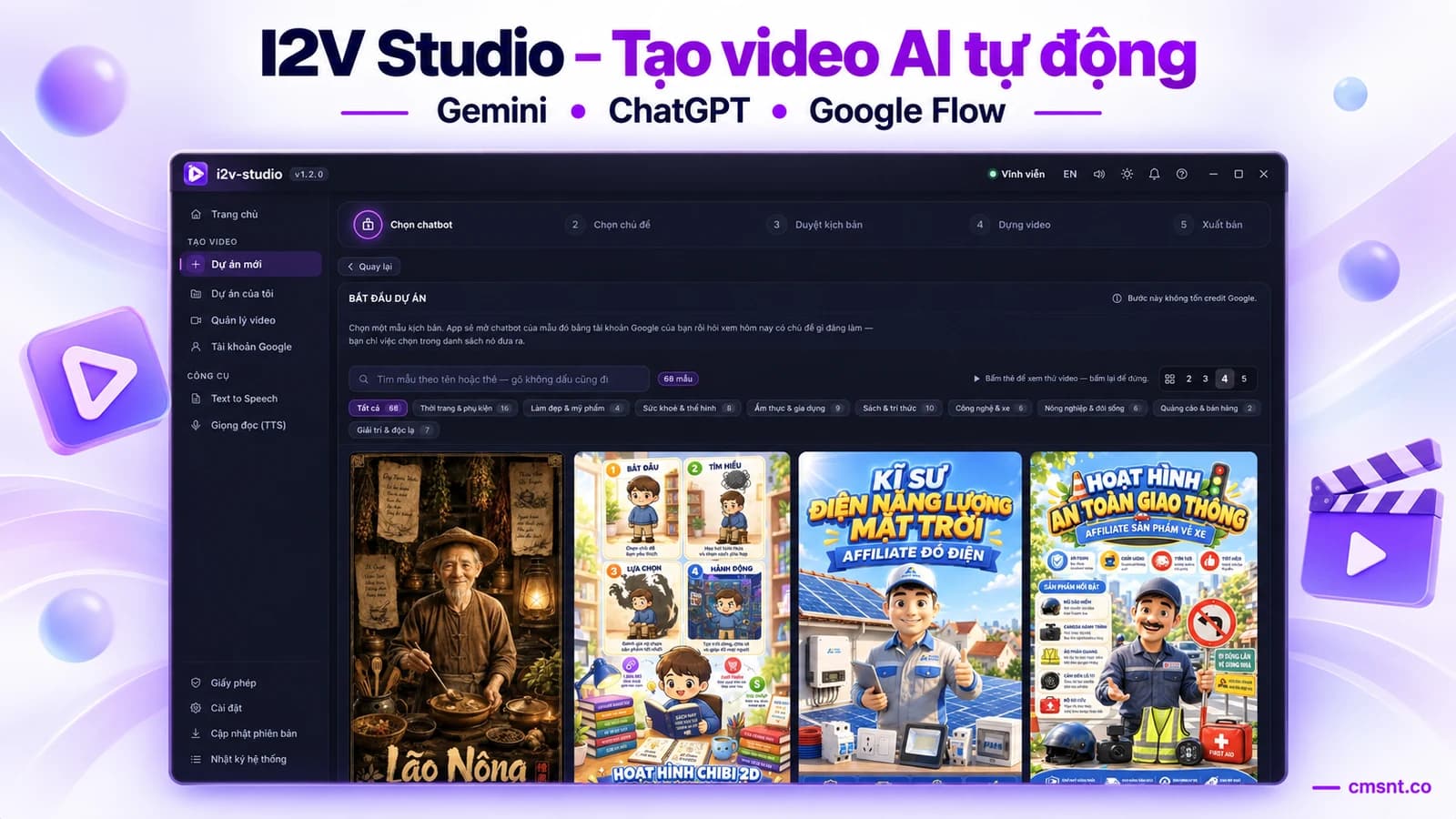
I2V Studio – An automated AI video tool powered by Google Flow
Type one idea, get a finished video. The app runs on your machine with your own Google account — buy the licence once, never pay per video.

About the software
I2V Studio is a desktop app installed on your own machine. You type an idea, the app opens Chrome with your own Google account, asks Gemini or ChatGPT for a script, generates clips on Google Flow, records the narration, burns in subtitles and assembles everything into a finished video. There is no middleman server and nobody holds your account.
Unlike web-based AI video services, you pay once for a lifetime licence. The generation credits are the credits of the Google AI Pro or Ultra plan you already pay for — the app only estimates how many credits a video will cost and how many your accounts have left, then leaves the decision to you.
The app ships with 96 ready-made script templates grouped by industry: fashion, beauty, health and fitness, food, books, technology, agriculture and direct-response advertising — and more templates keep arriving in later updates. Each template is a different way of making a video. Pick one and the app asks its chatbot what topics are worth covering today; you choose from the list it returns, review the script, and only then spend credits.
Your projects, exported videos and Google sessions all live on your own drive. The app charges nothing after the licence is sold and never touches your password — it simply opens a Chrome window and waits for you to finish signing in.
Demo video
I2V Studio demo: from a single idea to a finished video
Watch the demo video on YouTubeLength: 3:22
Demo: generating an AI video automatically on Google Flow
Watch the demo video on YouTubeLength: 3:03
One idea, five steps, a finished video
The creation screen follows five clear stages: pick a chatbot (script template), pick a topic, review the script, build the video, publish. The first two stages cost no Google credits, so you can explore freely before committing.
At the topic stage the app opens that template's chatbot with your Google account and asks what is worth covering today — usually answering within about half a minute. You pick one of the topics it returns or type your own, force a length between 30 and 180 seconds, and declare a voice for each character so every scene speaks in the same voice.
The script comes back split into scenes, each with its own narration, an English prompt for the video model and its own timecode. This is the checkpoint before credits are spent: you read every scene, edit the narration, edit the prompt, add or remove scenes, or ask the AI to rewrite the whole script.
Clip generation runs on Google Flow with four video models: Omni 1.1 Flash (4, 6, 8 or 10 second clips, 7–15 credits per run), Veo 3.1 Lite (10 credits), Veo 3.1 Fast and Veo 3.1 Quality. Choosing the model is up to you, and the app shows the price before you commit.
Not every template follows exactly those five steps. Product templates replace the topic suggestions with a form where you describe your product; templates with several treatments insert an extra step for choosing one. The progress bar changes per template instead of forcing every project into the same shape.

See every frame before you spend a credit
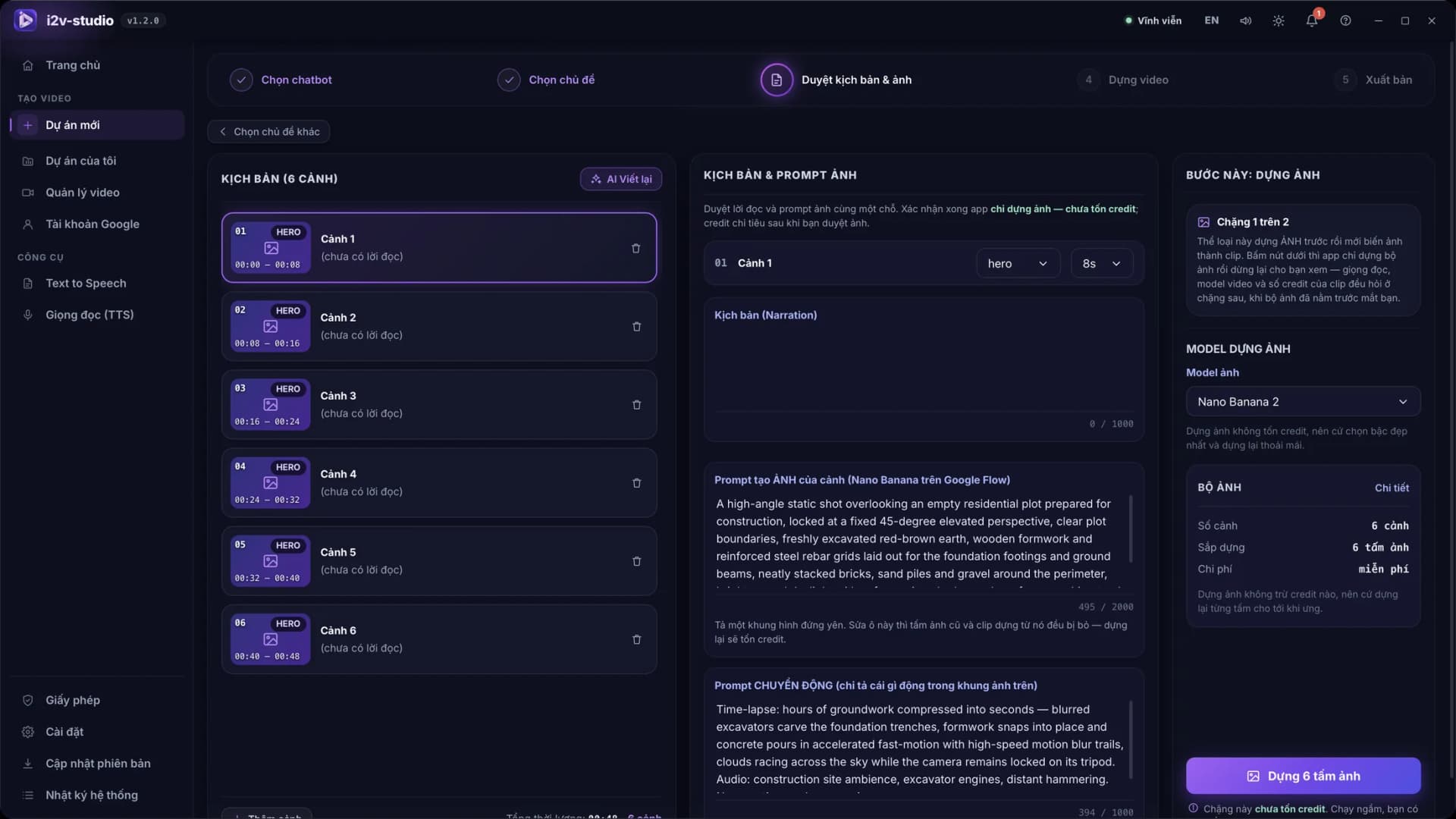
For image-based templates, step three is called “Review script & images” and splits in two. The first stage generates a still image for each scene with Nano Banana on Google Flow — the app states plainly that this stage does not deduct credits, so pick the best image tier and regenerate until you are happy.
You approve the image set in front of you before moving to the second stage: choose a video model, see what the app says it will cost in credits, and only then turn the images into clips. What you pay credits for is a frame you have already seen and agreed to, not a gamble.

Editing a scene's image prompt discards both the old image and the clip built from it — the app says so right under the input instead of letting you discover it through a credit bill.

The panel on the right sums up the batch before it runs: how many scenes, how many images are about to be generated, and what it costs. Scene images are also generated in a chain so the setting and lighting do not jump from one scene to the next.

Scene workbench: fix the one scene that needs fixing
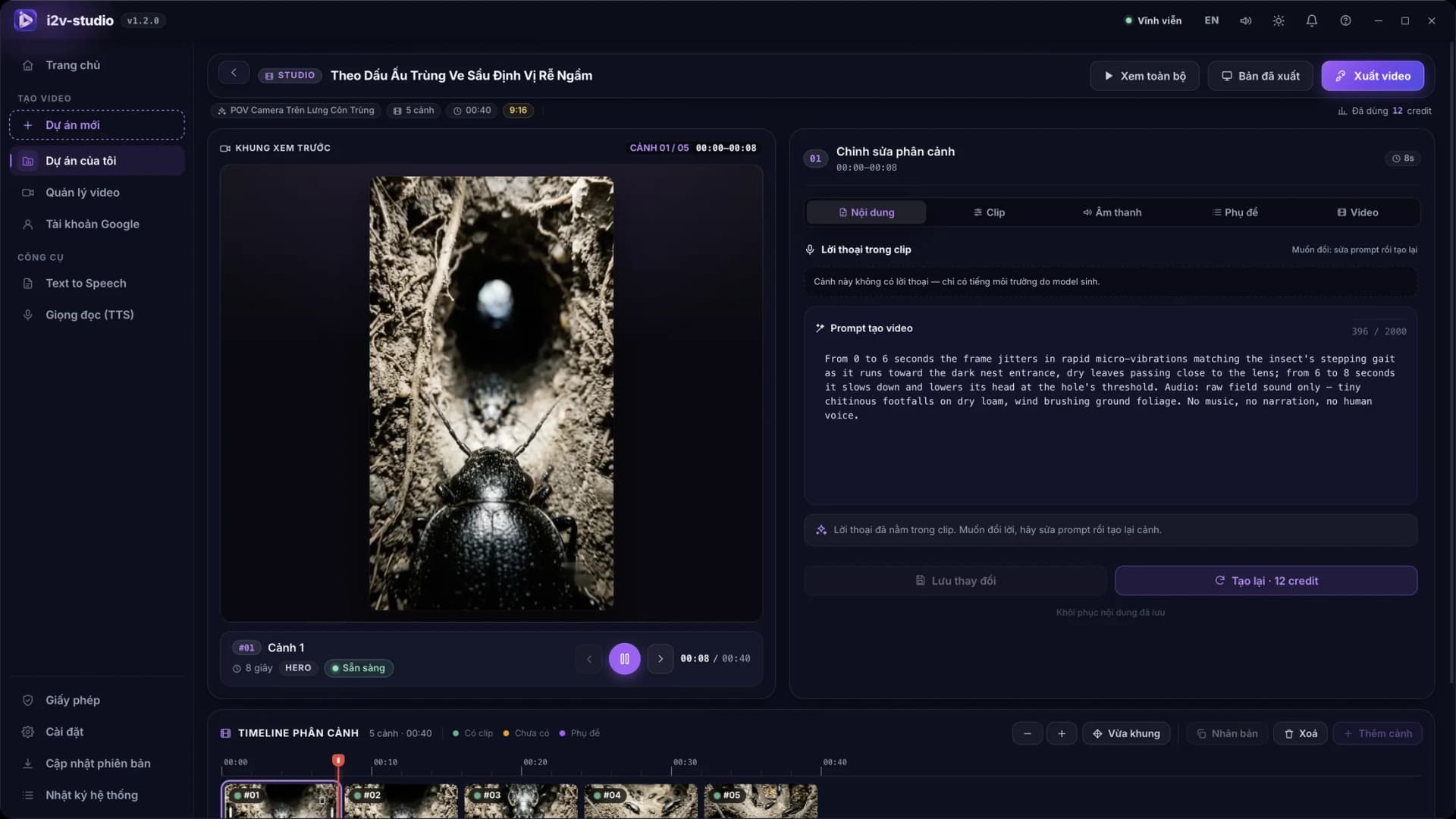
Every project opens a workbench: a preview frame for the selected scene, a scene timeline, and a right-hand column for editing that scene's content, clip, audio and subtitles.
This is where most credits are saved. When the model gets one scene wrong, you edit that scene's prompt and regenerate it — the app shows what the regeneration will cost. The other scenes that came out well stay untouched; nothing is rebuilt from scratch.
Narration, voice and subtitles are editable in the same place. Change the voice for one scene, fix a subtitle line the model misread, then export again — the parts you did not change are not rebuilt.


The timeline shows which scenes already have a clip, which do not, and which have subtitles. You can duplicate a scene, add a new one or delete a spare one before publishing.

96 ready-made templates, one video style each
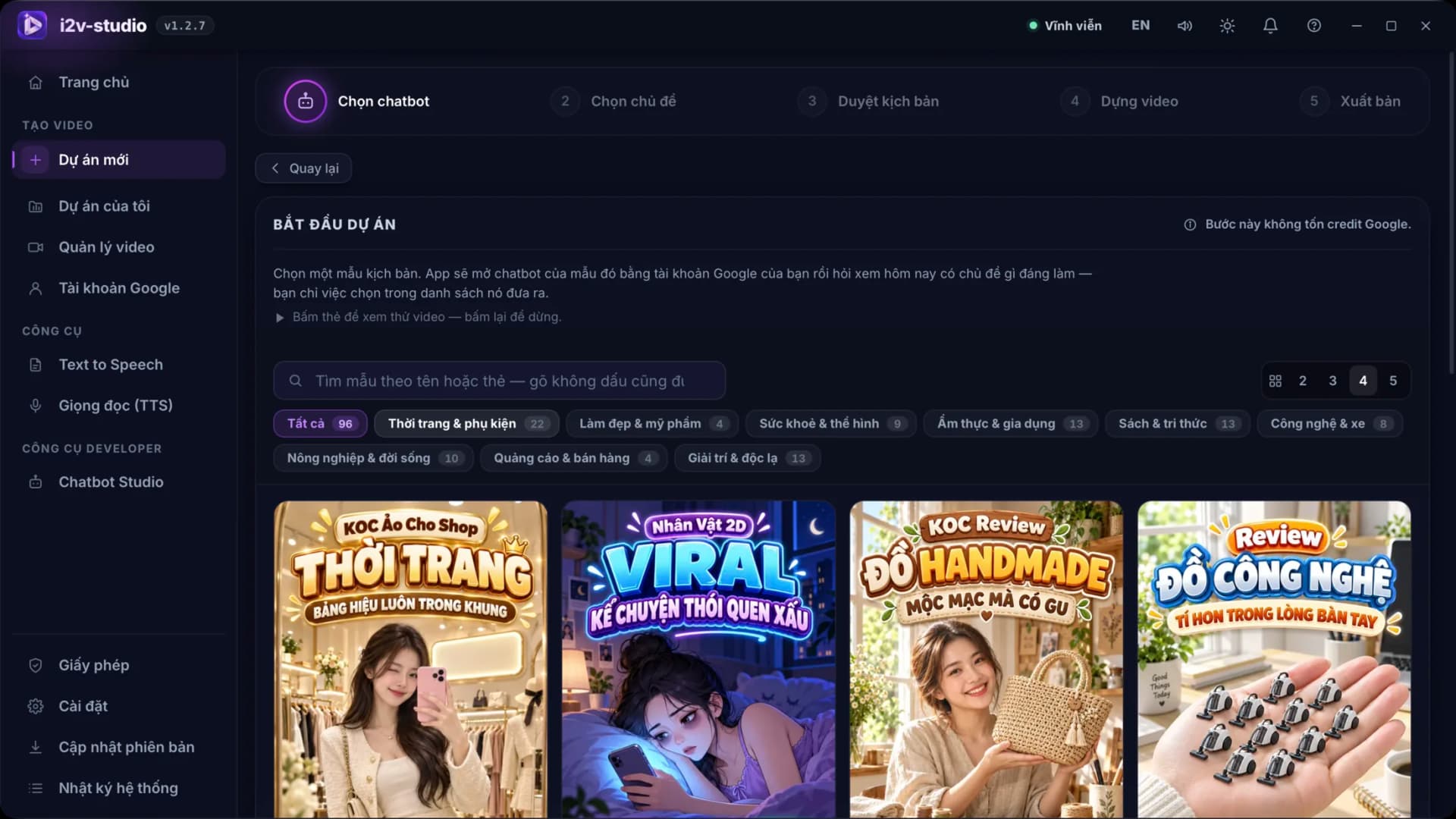
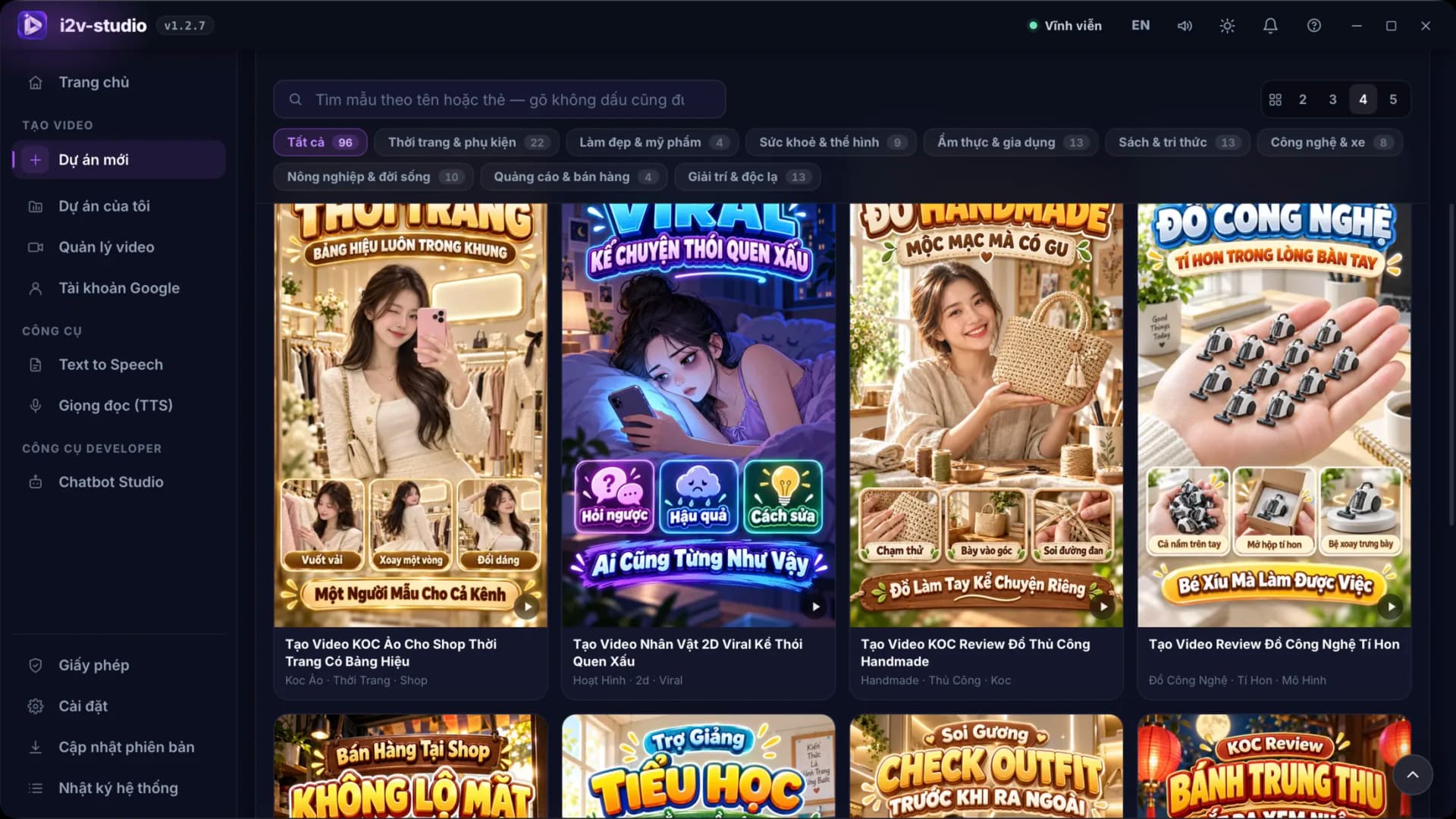
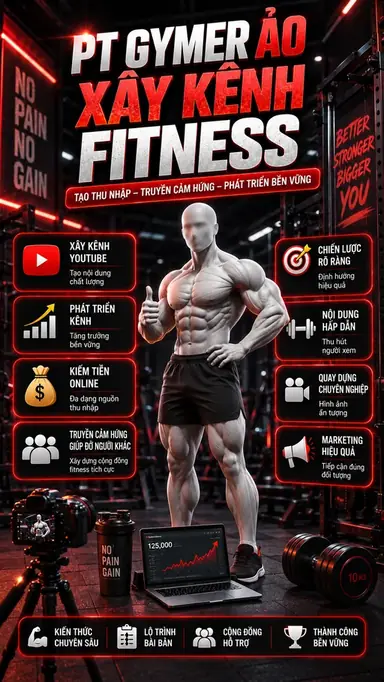
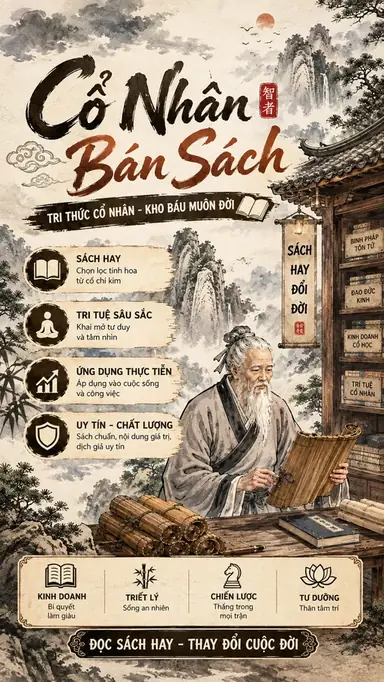
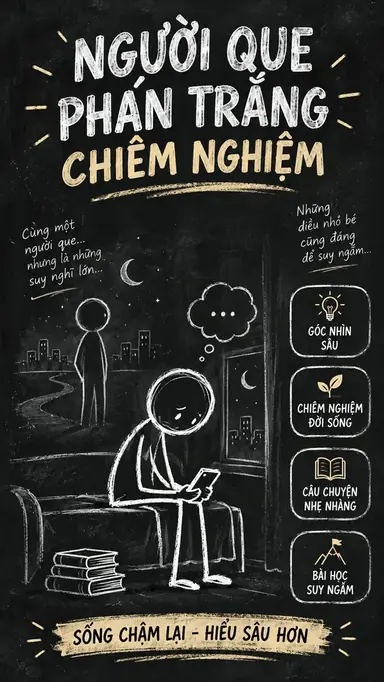
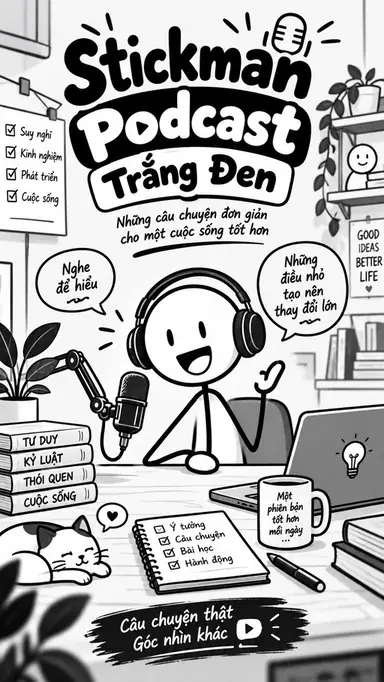
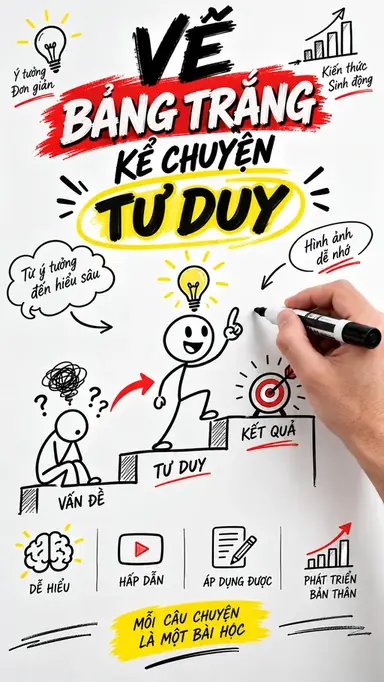
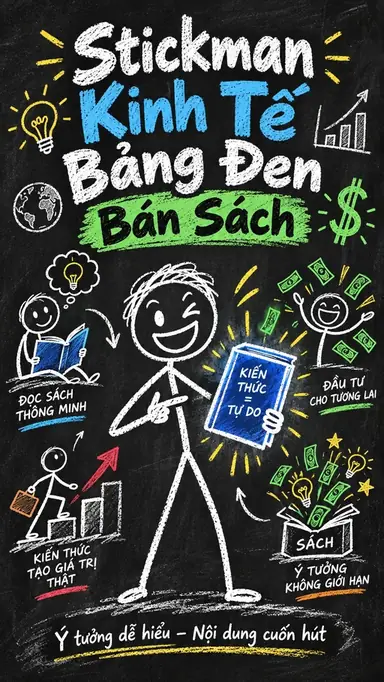
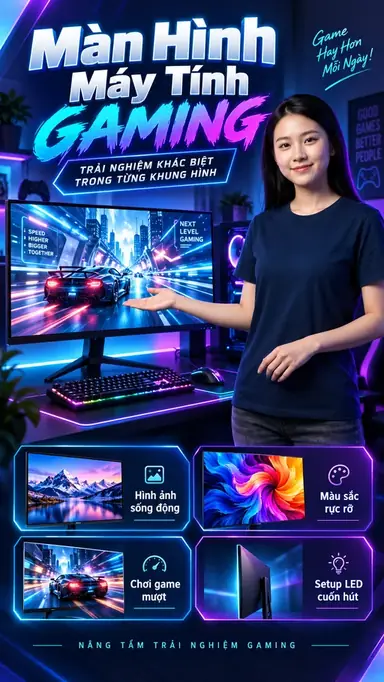
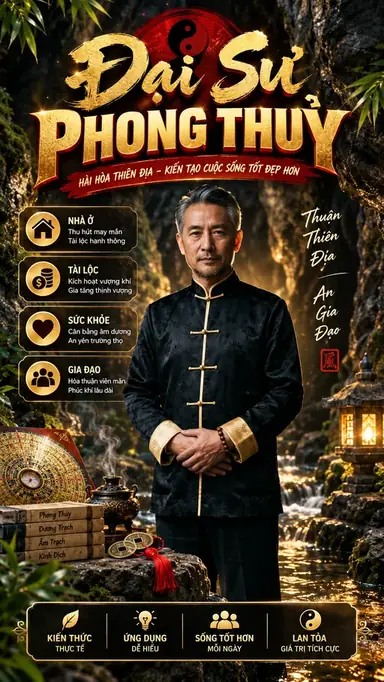
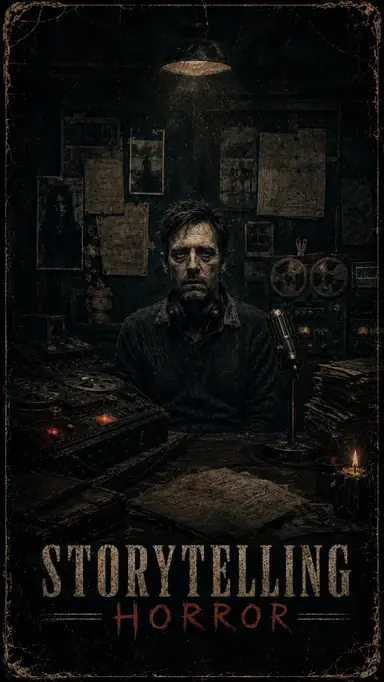
The template library sits right in step 1 of the creation screen. Each template is its own scriptwriting brain — a persona, a script blueprint and its own artwork — one per video style: product reviews, animated characters, stick-figure storytelling, POV life hacks, book recommendations, virtual fitness coaches and more.
The grid is split across nine industries, each chip showing how many templates it holds, and the search box accepts Vietnamese typed without diacritics. Tap a card to preview the kind of video that template produces — tap again to stop. Only once you have picked one does the app go and ask the chatbot, and none of this costs a single credit.
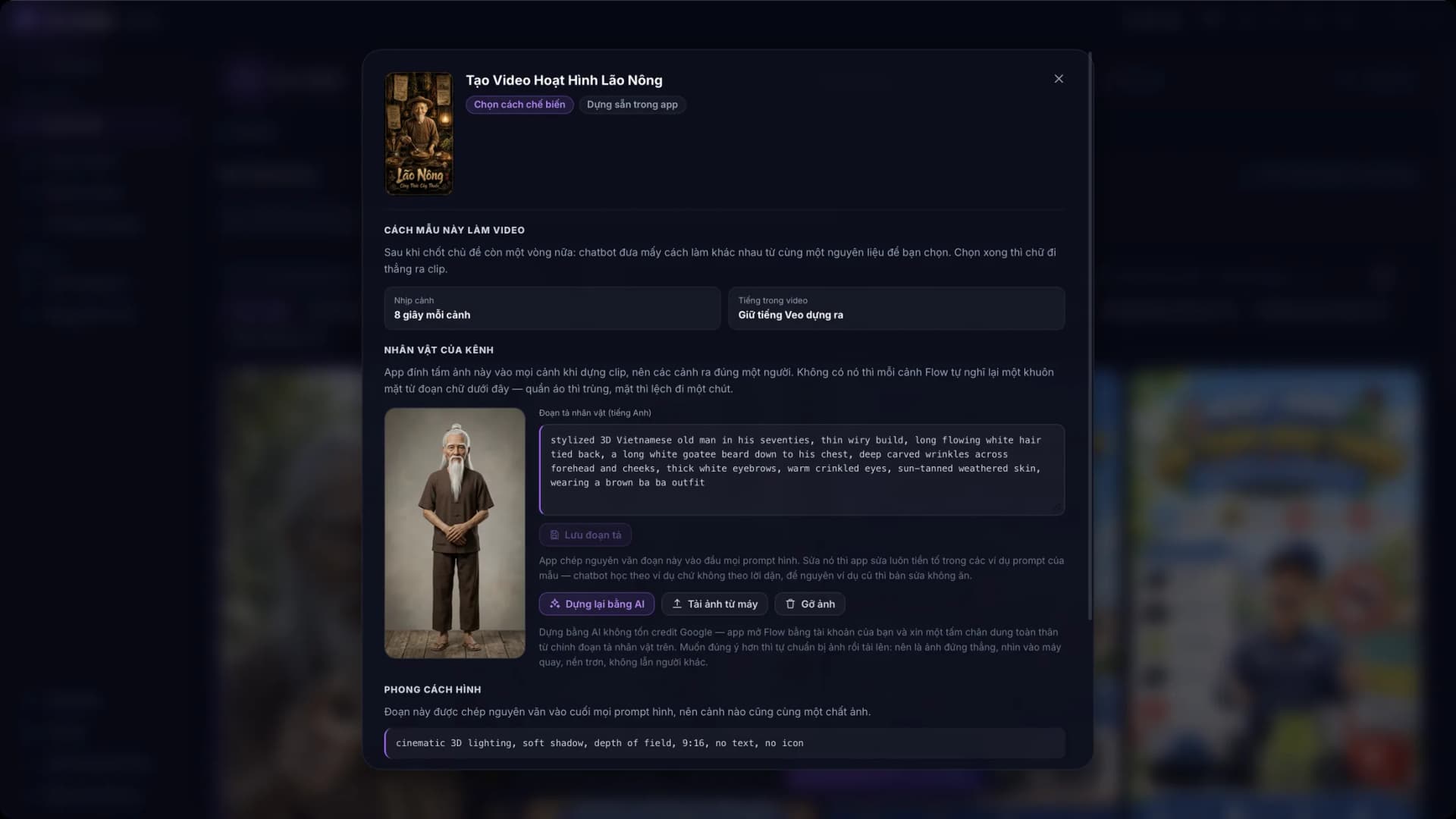
The Customise template button opens a panel that spells out how that template builds a video before you commit: how many seconds per scene, whether the video keeps the audio Veo generates or gets a voice-over, whether each scene opens on the previous scene's last frame, the image-style block appended to every prompt, and the example library the chatbot learns from. Seven templates can pin a character with a reference photo so the character keeps the same appearance across videos.
The contents of a built-in template ship with the installer and deliberately cannot be edited: change a single example prompt and the whole template's script blueprint drifts, and the next update would overwrite it anyway. In exchange, updates usually add new templates to the library — install one and they are simply there, at no extra cost. What belongs to you is each template's character photo — it lives in the data folder on your machine, so installing an update never touches it.

Pin a character to your channel so every video shows the same person
Each template has its own customisation panel, and the most valuable thing in it is the channel's character image. The app attaches that image to every scene while generating clips, so all scenes show the same person. Without it, Google Flow reinvents a face from the text for every scene — the clothes match, the face drifts.
The character image is generated inside the app and costs no Google credits: the app opens Flow with your account and asks for a full-body portrait built from the character description itself. For a closer match, upload your own image — standing straight, facing the camera, plain background, nobody else in frame.
The character description is written in English and copied verbatim to the front of every image prompt. Editing it also rewrites the prefix inside the template's example prompts, because the chatbot learns from examples rather than instructions — leave the old examples in place and your edit simply does not take.
The same panel holds the image style — a line appended to every image prompt so all scenes share one look — along with the template's scene pacing and how audio is handled. This is where a built-in template becomes your own channel.

Voices: five sources, word-accurate subtitles
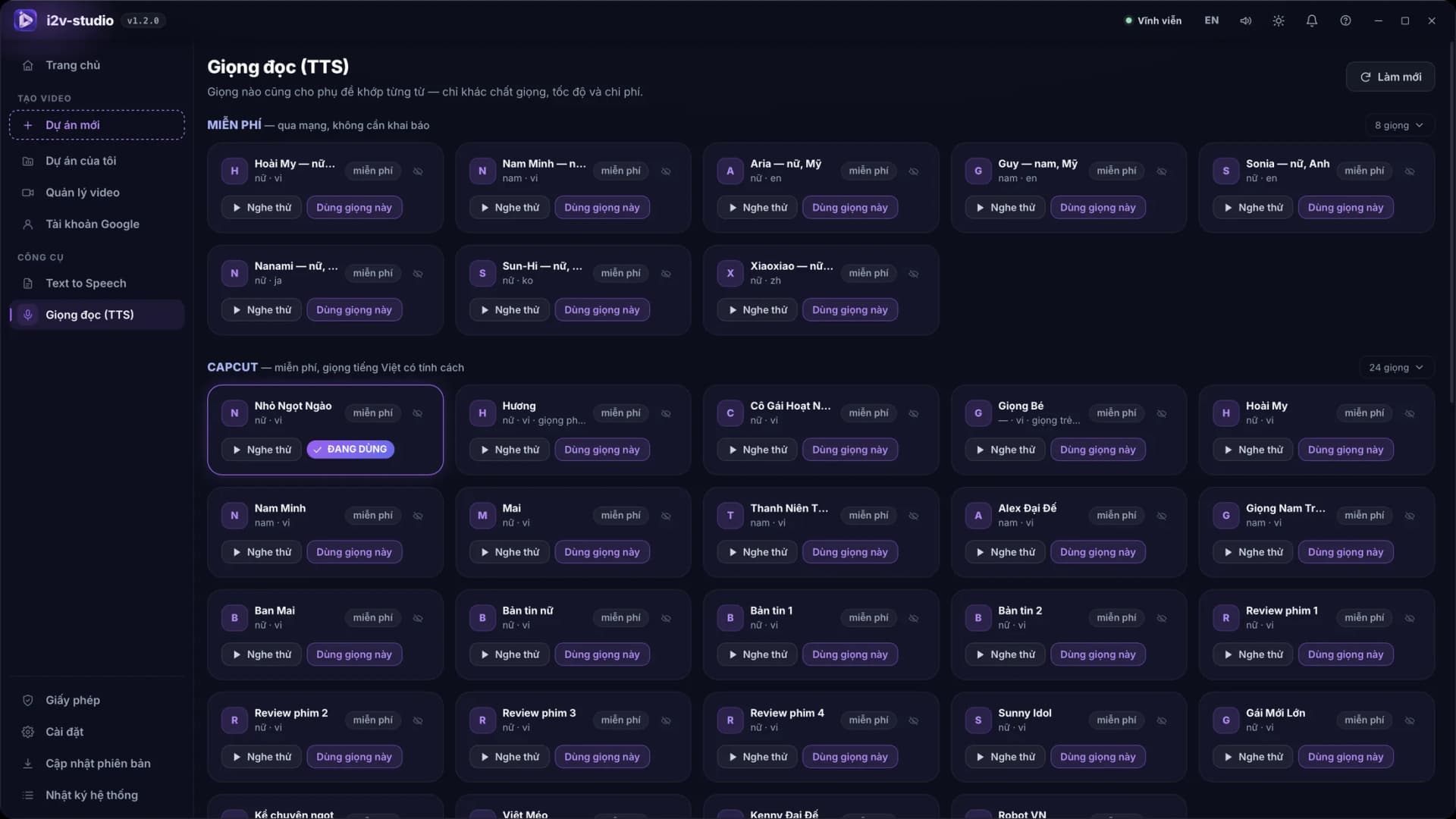
Edge is the default source: 8 voices across Vietnamese, English, Japanese, Korean and Chinese, free, nothing to sign up for, and it reports word-level timings so subtitles line up exactly.
CapCut adds 24 Vietnamese voices with character — news-reader, film-review, storytelling — instead of flat narration. It is also free with nothing to sign up for, but it goes through an unofficial route, so the app says plainly that it may stop working.
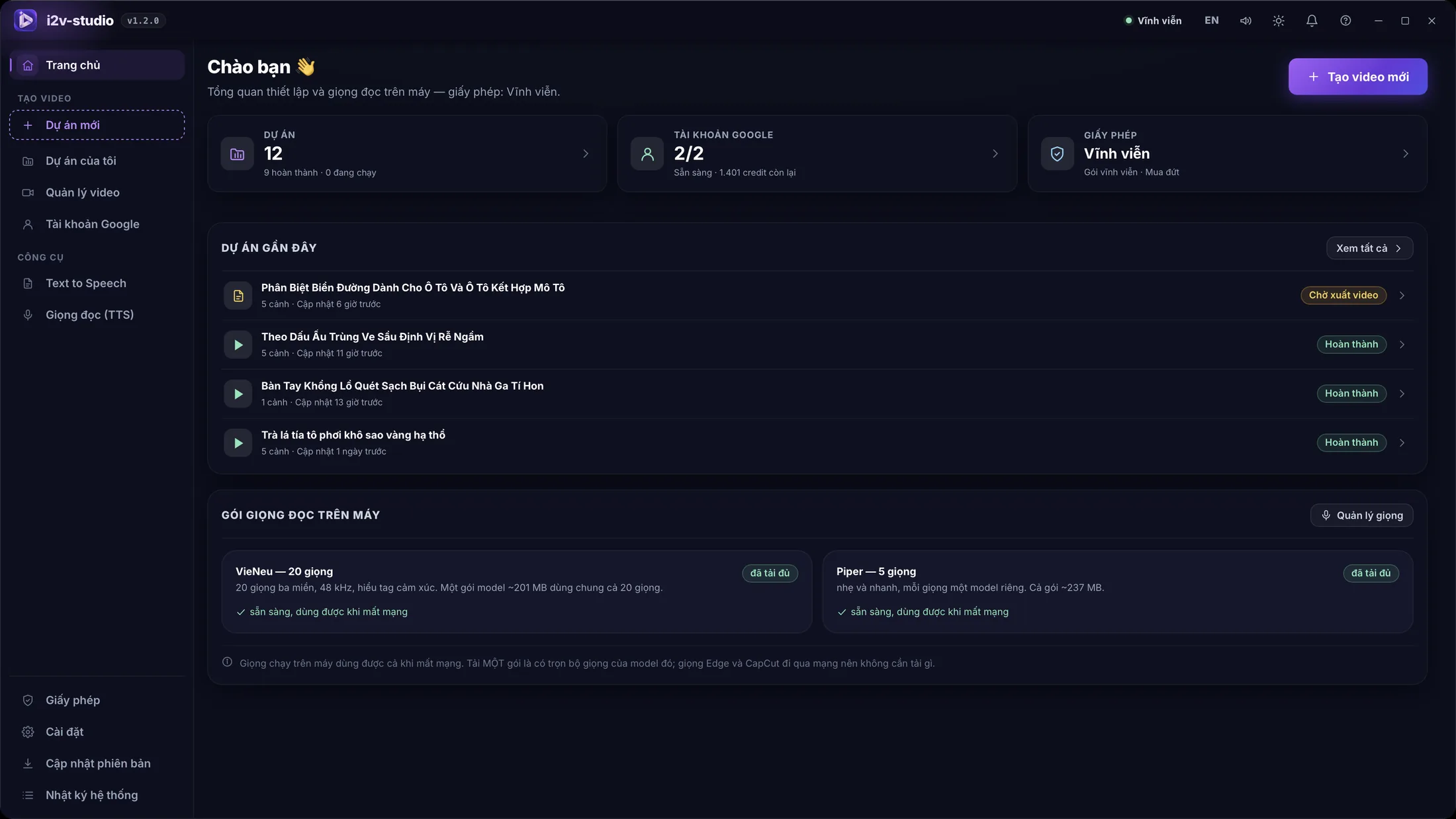
Piper and VieNeu run entirely on your machine: press Download once per voice (20–63 MB) and afterwards you need no network and nobody counts your usage. The trade-off is that neither returns timings, so subtitles are spread evenly by word length — slightly off in sentences that mix short and long words, and the interface says so instead of hiding it.
ElevenLabs gives the best voice quality, uses your own API key and bills you per character by ElevenLabs. The key is stored in the data folder on your machine and is never shown back in full. A voice that is not ready is blocked at confirmation time rather than at assembly time — so a whole batch of render credits is not lost to a video that dies at the last step.

Runs on your machine, with your Google account
You add your own Google accounts. A blank Chrome window opens, you sign in as usual, and the app notices the moment you are done and closes the window for you. It never touches your password — it only opens the window and waits.
Each account gets its own Chrome folder, so several accounts can run in parallel: measured on Windows 11, 8 Chrome windows took 8.2 seconds to start, each takes 0.6–1 GB of RAM, and a 16 GB machine handles roughly 13 at once.
Projects, the licence and exported videos live in the app's data folder on your machine, not next to the executable — so installing over the top during an update leaves your work alone. The export folder can be changed in Settings.
The licence is activated against a machine code: buy once, use forever, and when you change machines you release the licence on the old one and activate on the new one from inside the app. Updates download straight from the licence server with a checksum check.

Key features
- Five steps from idea to video: pick a template, pick a topic, review the script, build, publish
- The chatbot suggests topics worth covering today, or you type your own
- Force a video length between 30 and 180 seconds, or let the chatbot decide
- Declare a voice per character so every scene speaks in the same voice
- 96 ready-made script templates across nine industries, with more added in every update, quick filters and accent-free search
- Scripts come straight from Gemini or ChatGPT using your own account, with no middleman server
- Tap any template card to preview the kind of video it produces before you pick one
- Clip generation on Google Flow with four models: Omni 1.1 Flash (4/6/8/10s), Veo 3.1 Lite, Fast and Quality
- Generate a still image per scene with Nano Banana and approve it — no credits deducted — before turning images into clips
- Three image tiers: Nano Banana Pro, Nano Banana 2 and Nano Banana 2 Lite
- A shared product image library: upload once, attach up to 4 images per project so the model gets your product right
- Scene workbench: preview each scene, edit its prompt, regenerate that scene instead of the whole video
- Five voice sources: Edge, CapCut, on-device Piper and VieNeu, plus ElevenLabs with your own key
- Word-accurate subtitles burned into the video, with configurable position and typeface
- A credit estimate before you build: what this video needs and what your accounts have left
- Watermark removal for generated Gemini and Veo clips and images (complete on Windows)
- Several Chrome windows in parallel, each Google account in its own folder
- An output library inside the app: replay, download, open the video folder, reopen a project to export a new cut
- A standalone Text to Speech tool: paste a script or import .txt/.srt, pick a voice, get an audio file
- Recover Google accounts already present on the machine if the account list is lost
- Light and dark themes, Vietnamese and English interface, remembered window size
- In-app updates downloaded from the licence server with a checksum check before running
Technology used
Python 3.14 + FastAPI + pywebview + Playwright (Chromium) + ffmpeg, packaged with PyInstaller and Inno Setup
Interface screenshots
1 / 29
Please note
- Original price 1,500,000 VND, currently reduced to 1,000,000 VND.
- Lifetime licence: buy once, use forever, free updates until the product is retired.
- Each licence activates on one machine. To change machines, release the licence on the old one and activate on the new one from inside the app.
- The app charges nothing after purchase. Generation credits are the credits of your own Google AI Pro or Ultra plan.
- CMSNT does not hold your Google account: you add and sign in yourself, and the app never touches your password.
- Each account's Chrome folder is tied to the machine that created it and cannot be copied elsewhere — changing machines means signing in again.
- Clip generation goes through the Google Flow web interface. If Google changes that interface an app update is needed; updates download from the Licence screen.
- Watermark removal is complete on Windows; the macOS build does not yet have a native tool for it.
- Because of the nature of digital products - the licence key is delivered and usable immediately after payment - we do NOT issue refunds once a licence has been granted, except where a technical fault in the product cannot be resolved by us within a reasonable time.
- Service policy: read it here.
Ready to automate your online business?
Talk to CMSNT for a product recommendation, an in-depth demo and free initial setup.