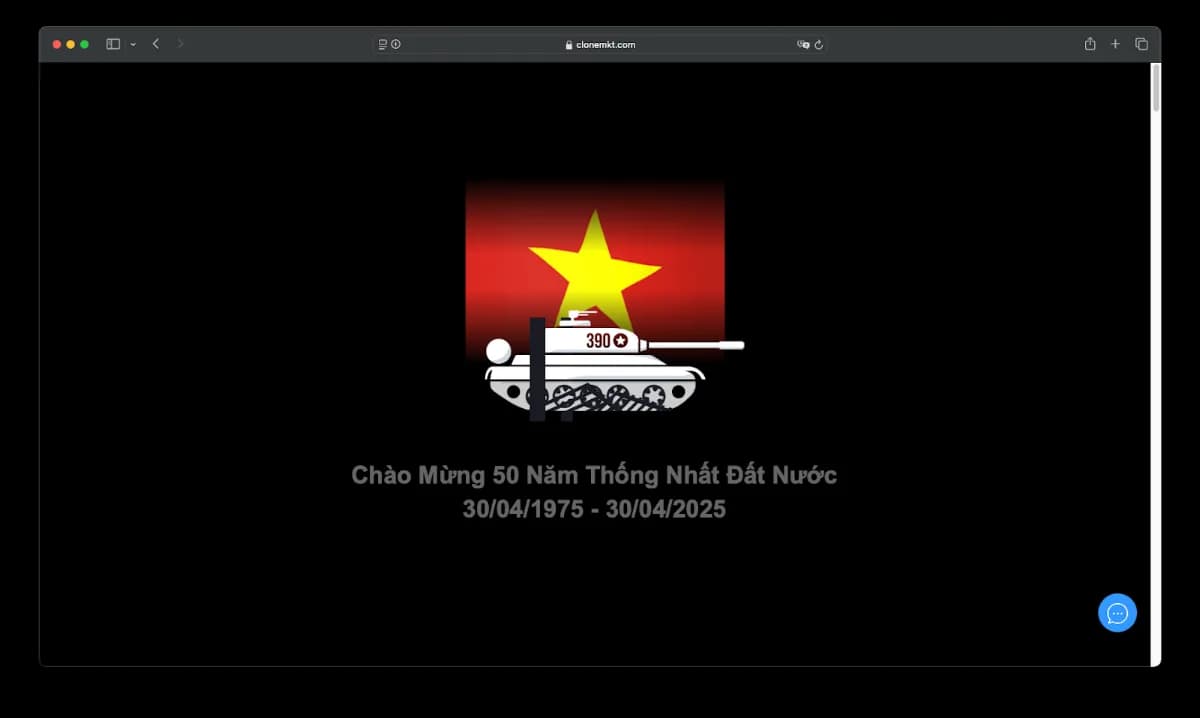
A themed effect makes a website feel fresh during a holiday without touching the core source code. On a website running CMSNT source code, you can switch on the effect celebrating Reunification Day (30 April) directly from the admin area.
The guide below focuses on deploying it quickly, checking the display across devices, and removing it after the event so the website stays light and stable.
Before you install the effect
You need an account with access to Settings in the Admin Panel. Back up whatever is currently in the Script Header field before adding new code, so you can restore it immediately if needed.
- Sign in to the admin area of the correct website.
- Check that the website works normally with no layout errors.
- Save the current Script Header content to a separate file.
Steps to insert the 30 April effect
- 01
Open the Script Header area
In the Admin Panel, go to Settings and find the Script Header field. The menu name may differ slightly by source code version.
- 02
Paste the effect code
Place the two lines below after the existing content. Do not delete other tags or scripts unless you are certain what they do.
- 03
Save and refresh the website
Press Save, open the homepage in a private window and reload to confirm the CSS and JavaScript files have loaded.
<link rel="stylesheet" href="https://api.cmsnt.co/cdn/3041975/style.css">
<script src="https://api.cmsnt.co/cdn/3041975/script.js" defer></script>
Note: The defer attribute makes the JavaScript run after the HTML has been parsed, limiting the impact on how fast the main content appears.
Checks after installing
Test on both desktop and phone, because a full-screen effect can cover navigation buttons or important content on a small screen. If you use a cache system, you may need to clear the application, CDN or browser cache before the change appears.
- The page still scrolls, buttons still click and the menu still opens.
- No horizontal scrollbar appears and nothing covers the buy button.
- The browser console reports no errors loading style.css or script.js.
- Page load speed has not changed noticeably.
How to turn the effect off after the holiday
Go back to the Script Header field, delete exactly the two lines you added and save. Then clear the cache and check the homepage again. Removing it on time keeps the interface professional and avoids loading resources you no longer need.
Performance and safety notes
Any external JavaScript file can affect the page. Only use URLs from a source you trust, monitor the website while the effect is active, and always keep a copy of the previous configuration. If your website has a strict CSP, the api.cmsnt.co domain must be allowed in the relevant directive.