Generating one AI clip is easy. Turning an idea into a complete video with consistent scenes, narration, subtitles and sensible pacing is the time-consuming part. A manual Google Flow workflow means writing prompts scene by scene, downloading every clip, naming files, generating voice-over and assembling everything in an editor.
I2V Studio automates that chain on your computer. It uses a Google account you sign in to yourself, asks Gemini or ChatGPT to develop the script, generates clips through Google Flow, creates narration, burns in subtitles and assembles the final video. This guide walks through the entire workflow and highlights what to check before spending credits.
What Does Automated AI Video Creation with Google Flow Mean?
An automated AI video workflow involves more than entering a prompt and waiting for a clip. It needs to turn a topic into a structured script, split that script into scenes of the right length, preserve character and visual consistency, then process audio, subtitles and the final export.
I2V Studio acts as the orchestration layer on your computer. It opens Chrome with your own Google session and works with Google Flow only after you approve the script. Project data, login sessions and exported videos stay on your device; CMSNT does not hold your Google password or ask you to hand the account to a third party.
- Input: an idea, product, topic or content format you want to develop.
- Processing: topic research, scripting, scene planning, image or clip generation, narration and subtitles.
- Output: a complete video ready for review, scene-level edits or publishing.
- Control: you approve the script and estimated credit cost before generation begins.
What You Need Before Creating an AI Video
I2V Studio is a desktop app, so the workflow runs on your computer rather than through an intermediary website. Install the latest version, activate your licence and add a Google account from inside the app. When a dedicated Chrome window opens, sign in normally; the app continues only after the session is ready.
Video-generation credits belong to your Google AI Pro or Ultra plan. The I2V Studio licence and Google credits are separate: buying the app does not include extra credits, while I2V Studio itself does not charge per exported video.
- A computer with I2V Studio installed and its licence activated.
- At least one Google account with Google Flow access and sufficient credits.
- Enough free storage for source clips, audio, subtitles and final exports.
- A clear goal: educational content, product reviews, storytelling or advertising.
Note: Each Google account uses its own Chrome profile folder. You can add several accounts to monitor available credits, but sign in and verify each one before starting a long project.
The Five-Step I2V Studio AI Video Workflow
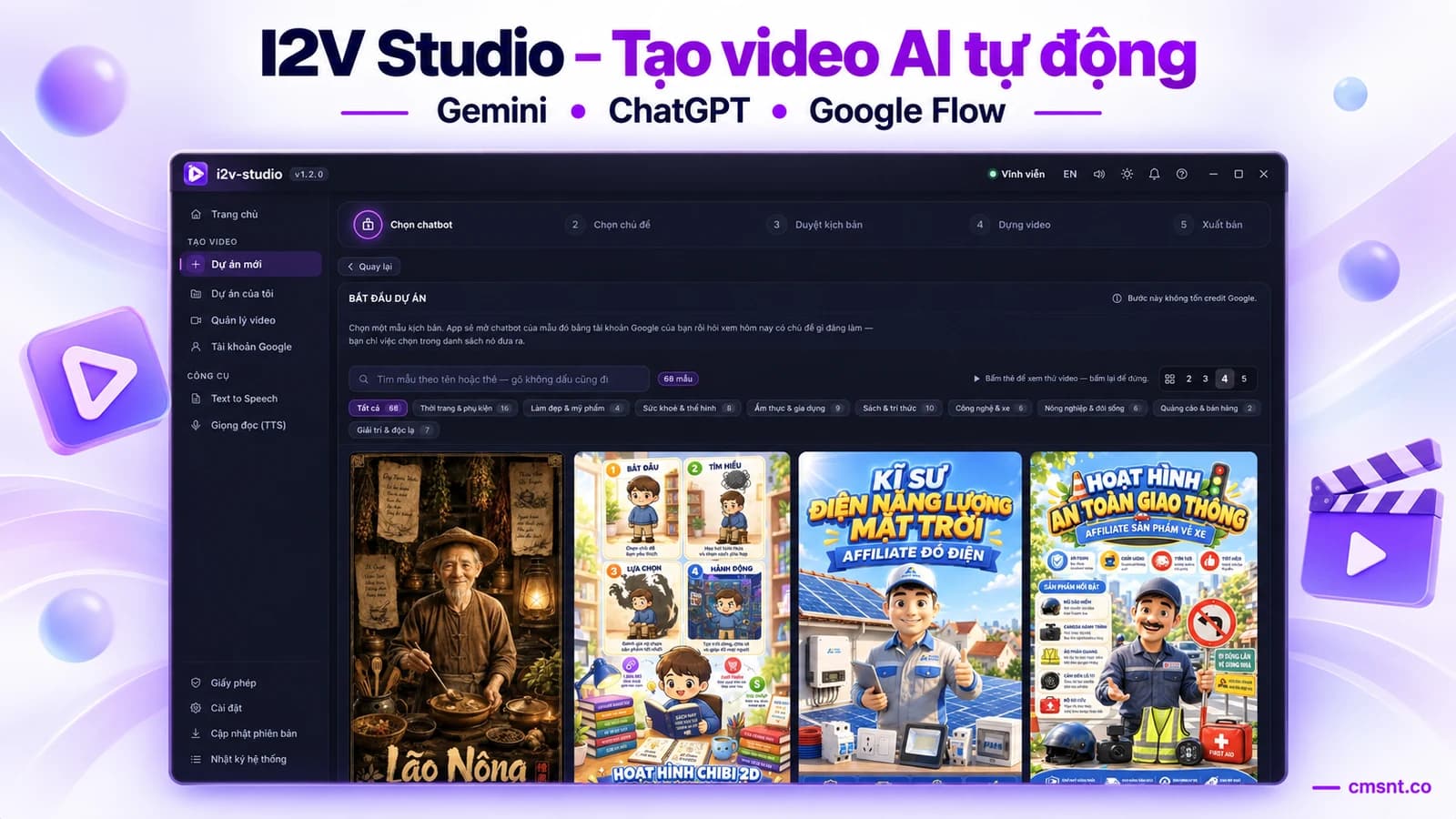
The creation screen divides the job into five stages so you always know where the project stands. The first two stages define the storytelling approach and prepare the content without spending Google credits. Credit usage begins only after you have reviewed and approved the script or scene images.
- 01
Choose a Script Template
Pick from 96 templates grouped by industry and content format. Each one has its own persona, scene rhythm, visual style and prompt examples, with a sample video you can preview before selecting it.
- 02
Choose a Topic
Ask the chatbot for topics that fit the selected template or enter your own idea. Set a target length from 30 to 180 seconds and specify a voice style for each character.
- 03
Review the Script and Images
Check narration, English visual prompts and timing scene by scene. For image-first workflows, generate and approve the image set before turning those frames into videos.
- 04
Generate through Google Flow
Select a model, review the estimated credit total and confirm. The app generates each clip with the Google account you selected and returns it to the project.
- 05
Export
Choose narration, refine subtitles, review the timeline and export the completed video to a folder on your computer.
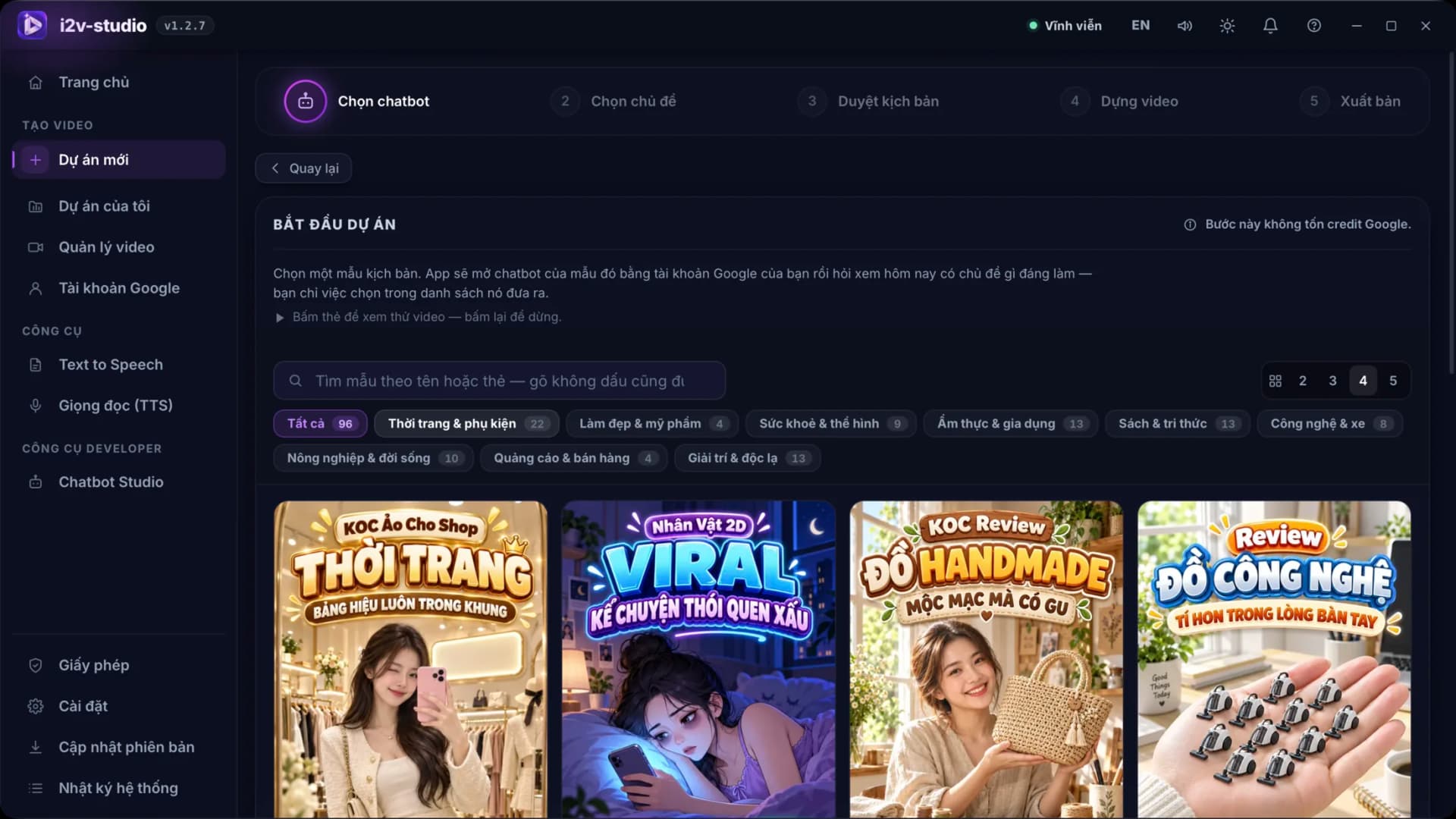
Watch the Workflow: From One Idea to a Complete Video
The walkthrough below records I2V Studio running on a real computer: selecting a template, choosing a topic, reviewing the script scene by scene and moving the project into production. It is the quickest way to see which operations the app automates and where you remain in control.
- See how 96 script templates can be filtered by industry and content goal.
- Inspect each scene's structure, narration and prompt before approving generation.
- Follow a project from the initial idea to an editable scene timeline.
Review Scripts and Keyframes Before Spending Credits
Reviewing is what separates a controlled production workflow from random prompt retries. The script is split into scenes, each with narration, a visual prompt and its own timing. You can edit text, rewrite prompts, add or remove scenes, or ask the AI to revise the full script before generation.
For image-first templates, I2V Studio uses Nano Banana in Google Flow to prepare a still image for every scene. Under the app's current workflow, this stage does not deduct credits, so you can inspect composition, characters and lighting before choosing a model to animate those images. Fix weak frames here instead of paying to animate a poor starting point.
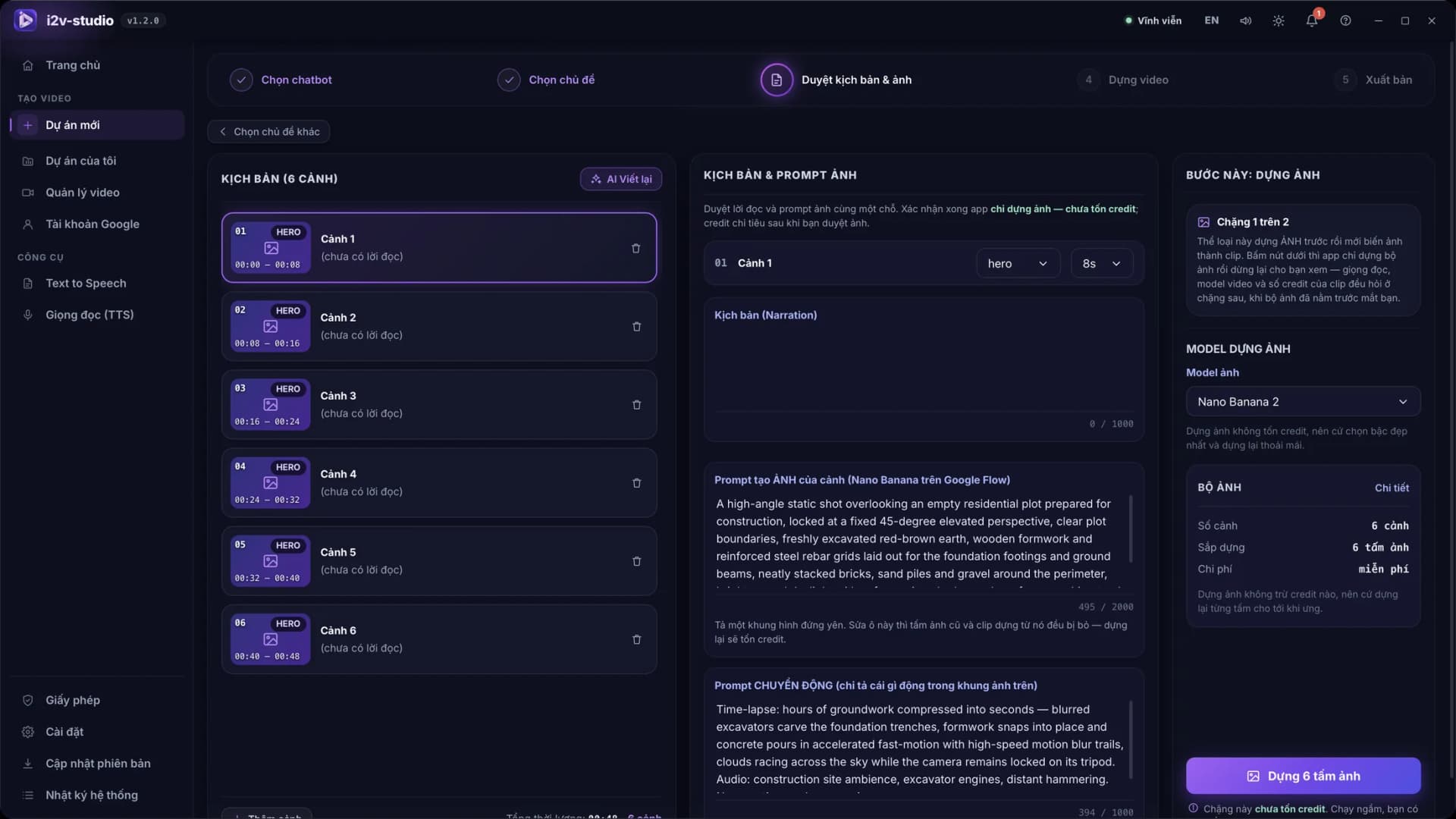
Note: A useful prompt clearly defines the subject, action, setting, camera angle, lighting and visual style. For a recurring character, keep the identifying description consistent across scenes.
Choose a Model and Optimise Credit Usage
I2V Studio exposes the model choices configured in the app, including Omni 1.1 Flash and the Veo 3.1 Lite, Fast and Quality tiers. Each option balances clip length, speed and quality differently. The app shows an estimated cost before confirmation so you do not have to guess the total credits required for a project.
The most effective saving comes from finalising the script and keyframes first, then regenerating only the scene that needs work. I2V Studio's scene editor lets you change a prompt and rerun the selected scene while keeping every approved clip intact.
- Create a short draft to validate the template, narrative voice and visual direction before producing a longer video.
- Review the total scene count and estimated cost, with a credit reserve for likely retries.
- Improve a vague prompt instead of repeatedly generating with the same ambiguous description.
- Reserve higher model tiers for hero scenes if the entire video does not require the same quality level.
- Review every scene immediately to catch character, text or motion errors early.
Edit Individual Scenes, Add Voice-over and Create Subtitles
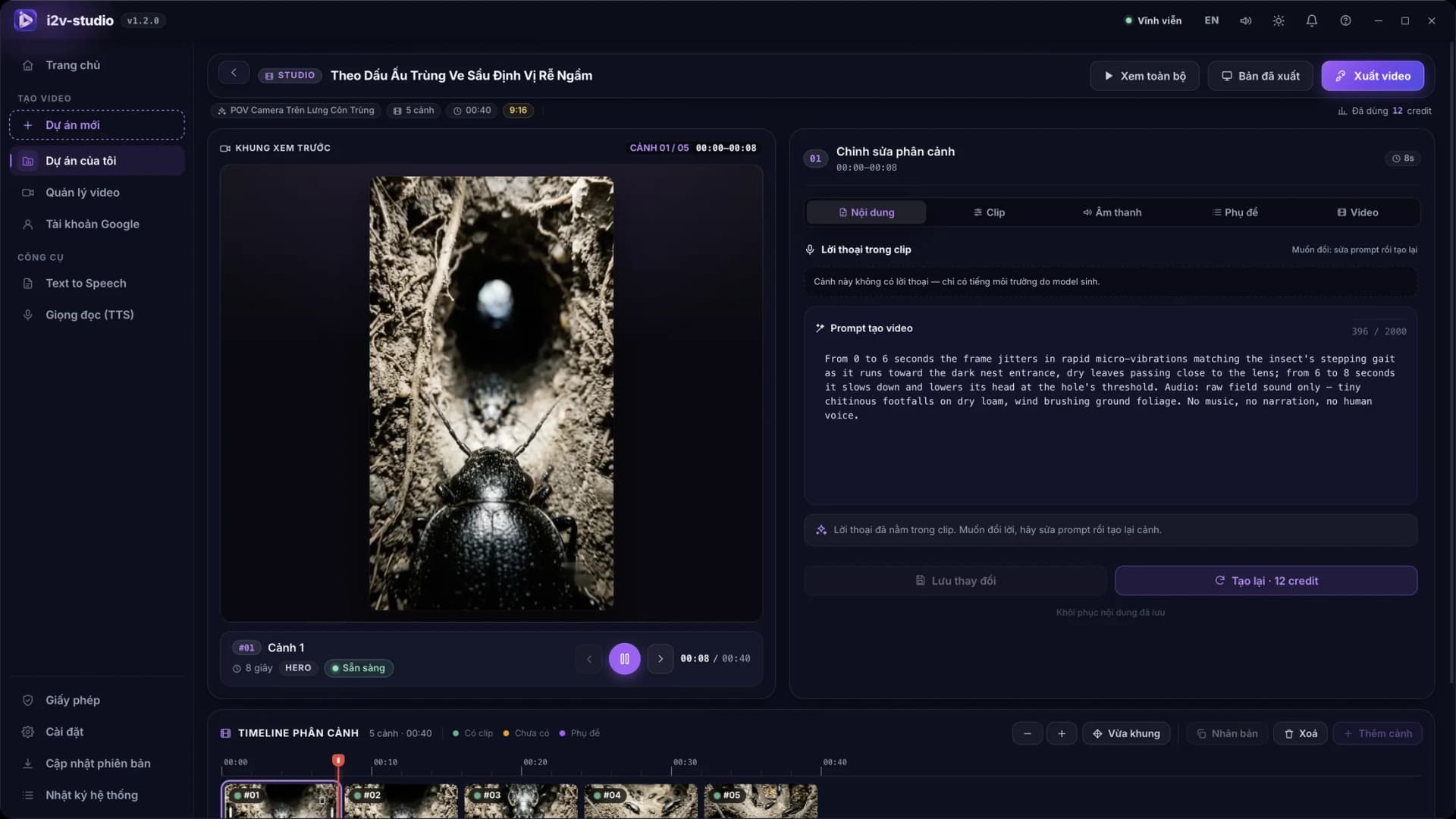
Once clips return to the project, the studio displays a preview, a scene timeline and controls for the selected scene. You can change narration, switch voices, edit subtitles, duplicate a scene, add a new one or remove unnecessary content without rebuilding the entire video.
The app supports several voice sources. Edge and CapCut offer a quick start; Piper and VieNeu run locally after their models are downloaded; ElevenLabs uses your own API key when you need premium voices. Always preview pronunciation, especially for brand names and numbers, before exporting.
- Keep background music below the narration so the message remains clear on phone speakers.
- Use short subtitle lines and avoid covering faces or important on-screen text.
- Verify pronunciation of brand names, English terms, prices and measurements.
- Watch the final export from beginning to end to catch blank scenes or abrupt transitions.
Which Content Formats Suit I2V Studio?
The template library means creators do not have to start from a blank page. Choose the structure closest to your goal, then replace the topic, character and style to develop a recognisable series. This approach works best for repeatable formats whose subject changes from one episode to the next.
- Educational channels covering technology, health, personal finance, agriculture or explainers.
- Product review and sales videos focused on benefits, use cases, comparisons and calls to action.
- Storytelling channels using animation, virtual characters, history, short fiction or motivational narratives.
- Faceless video channels built around a consistent character, voice and subtitle format.
- Content experiments that test several hooks or angles before a larger campaign.
Note: Automation speeds up production but does not replace editing. You still need to verify factual accuracy, rights to input assets and the policies of the platform where the video will be published.
AI Video Pre-publish Checklist
Once the workflow is reliable, keep the templates, prompt patterns and character identity that perform well so later videos share the same style. I2V Studio removes repetitive operations; channel quality still comes from strong topics, clear scripts and your own disciplined review process.
- The core message appears early and stays consistent from the title through the final scene.
- Characters, products, colours and settings do not change unexpectedly between scenes.
- There are no obvious AI artefacts such as malformed hands, distorted text, extra objects or implausible movement.
- Narration is correctly written, pronounces names properly and matches the on-screen content.
- Subtitles are legible on mobile, sit within safe margins and will not be obscured by platform controls.
- Aspect ratio, duration and file size fit YouTube, TikTok, Facebook or the intended destination.
- You have the right to use every image, audio track, logo and dataset supplied to the project.
- The final file has been reviewed and stored with its project so future edits remain possible.